
1. Login to your SolusVM Control Panel.
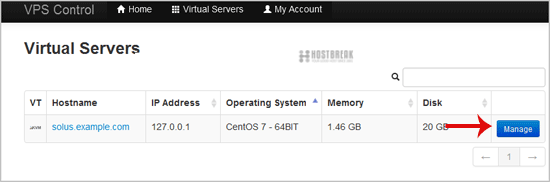
2. If you have multiple VPS, select the appropriate one.
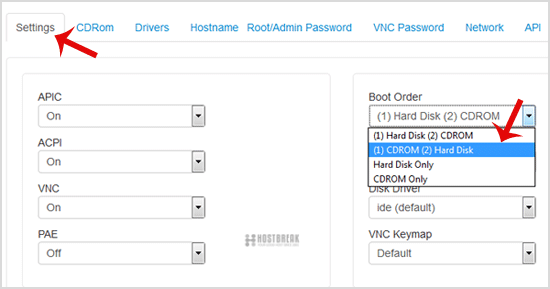
3. Scroll down, and under the "settings"� tab, change the Boot Order to "(1) CDROM (2) Hard Disk"�.
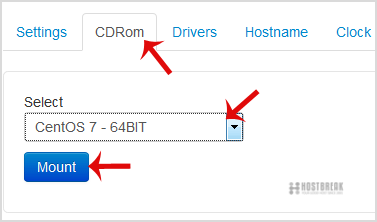
4. Now click on the "CDRom"� tab and if the CD-ROM is already mounted, click on unmount and then select your operating system from list. Then click on "Mount"�.
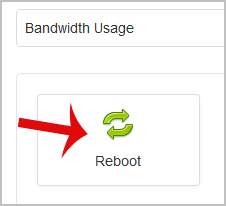
5. Reboot your VPS by clicking on "Reboot"� and it will show a confirmation window. Then click on "Yes"�.
6. Now quickly click on VNC without waiting.

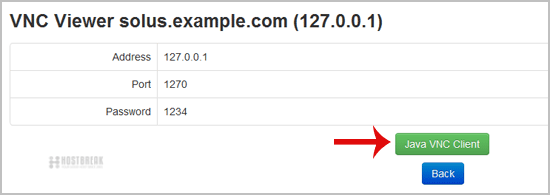
7. The new VNC page will open. Click on "Java VNC Client"� or on the "VNC"� button.
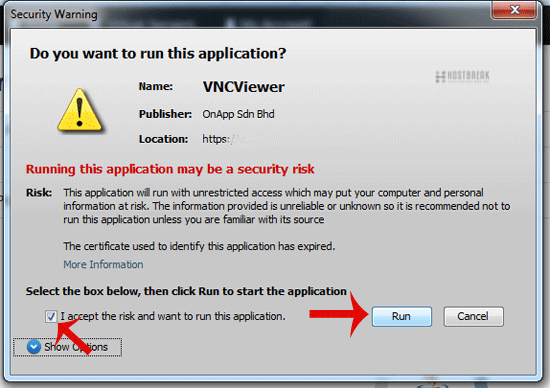
8. It will prompt for confirmation. Click "Ok"� or "Continue"� and it will show "Security Warning"�. Accept it and click on "run"�.
9. Most operating systems will ask you to "Press any button to start OS Installation"� while booting. You need to press any key on your keyboard when asked and the OS Installation/Reinstallation will begin. It may also show you an option like "Install OS"�, "Test this media"�. For OS Installation/Reinstallation you need to select "Install OS"� and press the enter button.
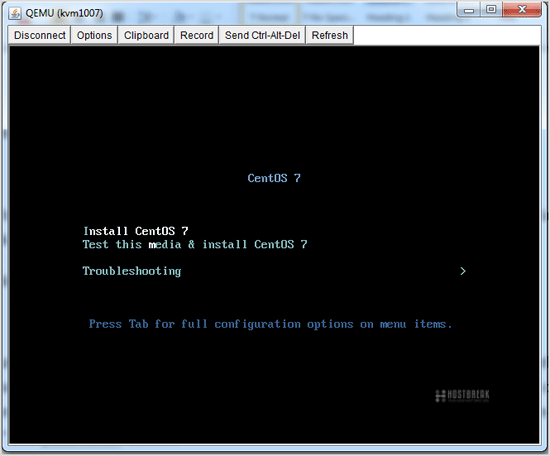
Once the installation begins, it while set up the OS and ask you to create partitions, set root/admin passwords, etc.
After the installation is complete, don"t forget to set your VPS Boot Order to "(1) Hard Disk (2) CDROM"�, otherwise it will reboot your VPS and start in installation mode, instead of normal mode.