
After a recent firewall upgrade, remote database access is strictly restricted to ensure maximum server security. This feature is now available exclusively for users on the Business Plan.
Follow this step-by-step tutorial to whitelist your IP address and allow remote SQL/database connections to your database.
Prerequisites
-
You must be subscribed to an active Business Hosting Plan.
-
Access to your Plesk Control Panel credentials.
-
Your current public IP address (you can check it by visiting
whatismyip.com).
Step-by-Step Guide
Step 1: Log in to Plesk Control Panel
-
Access your Plesk Control Panel login link provided :
https://plesk.hostbreak.com/login_up.php
https://plesk3.hostbreak.com/login_up.php -
Enter your Username and Password to log in.
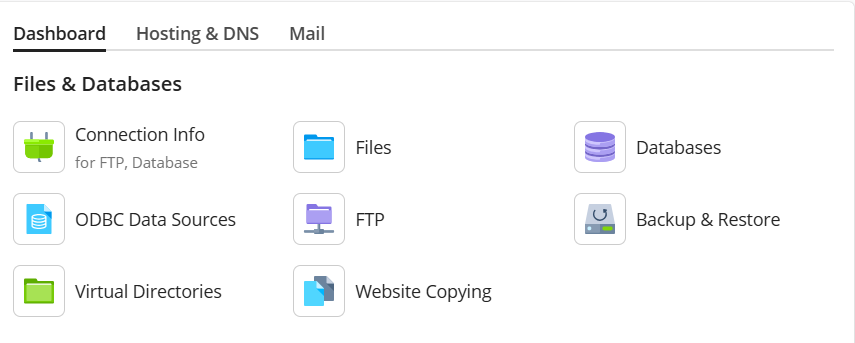
Step 2: Navigate to Databases
-
On the Plesk Dashboard, go to the Websites & Domains section.
-
Click on Databases under the Files & Databases section.
Step 3: Select Database User
-
Under the Databases section, click on the User Management / Database Users tab or click on the specific Database User you wish to configure.
-
Select the database user to edit its settings.

Step 4: Configure Remote Access and Whitelist IP
-
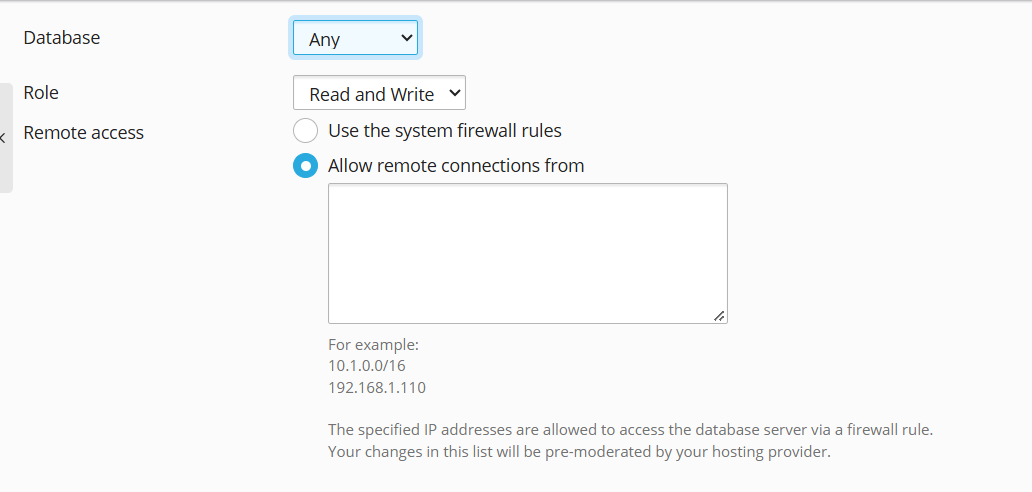
Scroll down to the Remote access section.
-
Select the option "Allow remote connections from".
-
In the text box provided below, enter the IP address (or range/CIDR) from which you want to establish remote database connections (e.g.,
192.168.1.110or10.1.0.0/16). -
Click OK or Save to apply the changes.
Important Notes:
-
Pre-moderation / Firewall Sync: Changes made to remote access settings will automatically sync with the firewall system.
-
Dynamic IPs: If your internet service provider uses dynamic IP addresses, you will need to update your whitelisted IP in Plesk whenever your public IP changes.
-
Upgrade Notice: If you are using a standard plan and do not see remote access options available, please upgrade your hosting package to the Business Plan to unlock this capability.