
Description
When AutoSSL runs, it may fail to activate SSL on a domain, and the browser shows a self-signed or invalid certificate error when the domain is checked.
Cause
This usually happens because the domain has not been issued a certificate through AutoSSL, often because it was previously excluded or skipped.
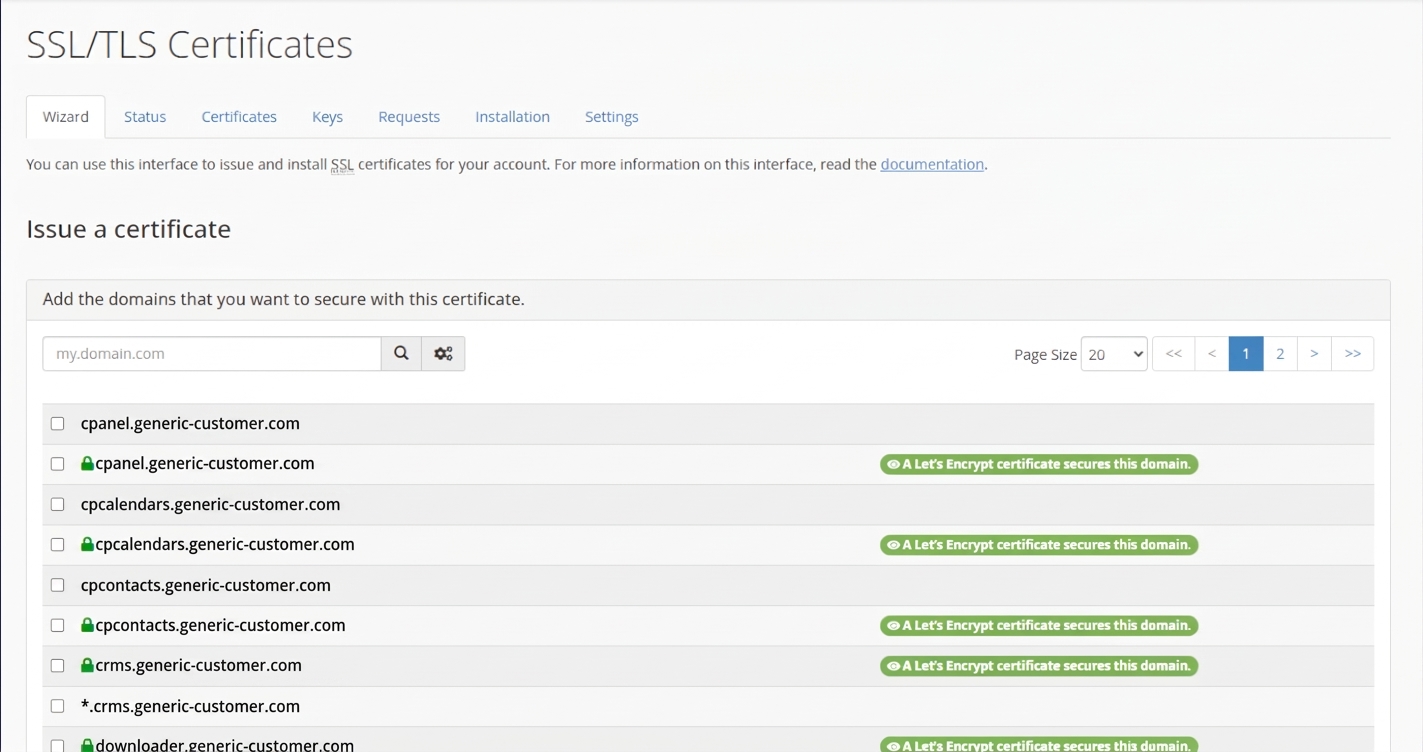
How to fix it
- Log in to cPanel for the domain/user in question.
- Navigate to SSL/TLS Status (search "SSL/TLS" in the cPanel search bar if you don't see it on the homepage).
- Click on the Wizard tab.
- In the domain list, find the domain that is showing the certificate error. Domains already secured will show a green "A Let's Encrypt certificate secures this domain" label — if your domain doesn't show this, it needs a certificate issued.
- Tick the checkbox next to the domain (and its
www.version if listed separately). - Click Issue at the bottom of the page to continue the wizard.
- Follow the on-screen steps to complete domain validation and issue the certificate.
- Once issued, refresh the site in your browser to confirm the certificate error is gone.
If the issue persists
If the domain still fails to get a certificate, check for these common causes instead:
- The domain's DNS is not pointing to this server (AutoSSL can't validate ownership).
- A CAA record on the domain restricts which Certificate Authorities may issue certificates.
- The domain is on a global AutoSSL exclusion at the server level (contact support to check this).
If none of these resolve it, contact support@hostbreak.com with the domain name for further investigation.
Related articles: How to access Cpanel account
