
How to Whitelist and Blacklist E-mail Address/Domains in cPanel
Overview
In cPanel, you can whitelist or blacklist any email address or domain.
- Whitelisting allows emails from specific addresses or domains to bypass spam filters and reach your inbox.
- Blacklisting blocks emails from certain addresses or entire domains, preventing them from reaching your inbox.
Follow the steps below to whitelist or blacklist emails in cPanel:
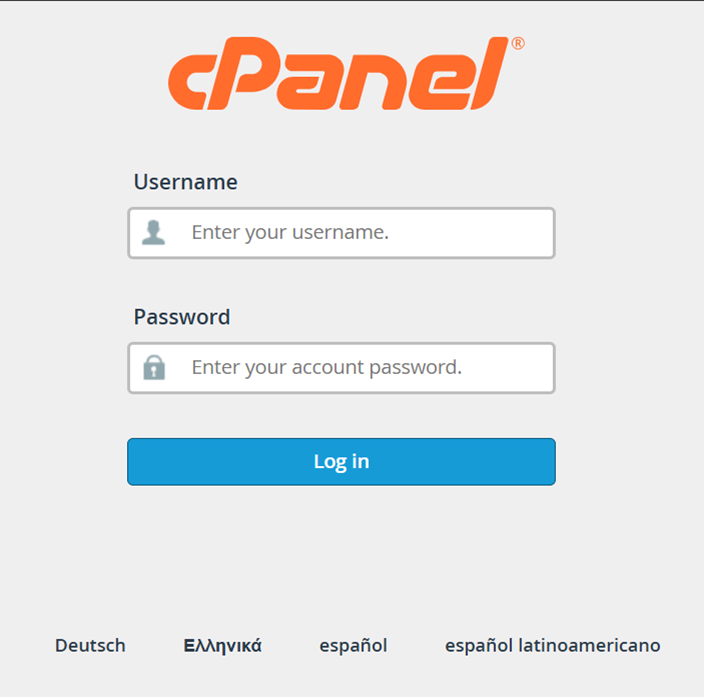
Step 1: Log in to cPanel
Access your cPanel account using your credentials.
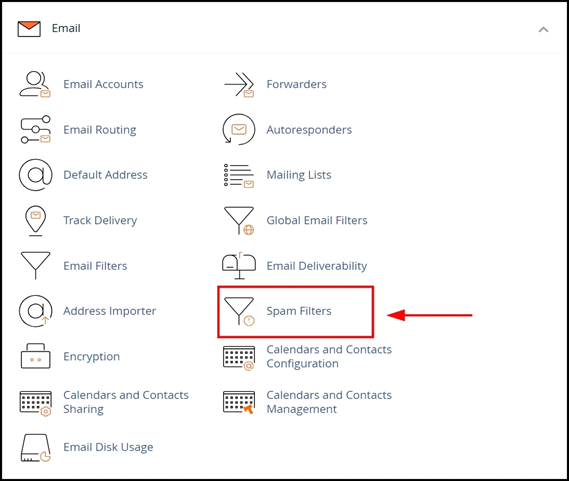
Step 2: Open Spam Filters
In the EMAIL section, click on Spam Filters to proceed.
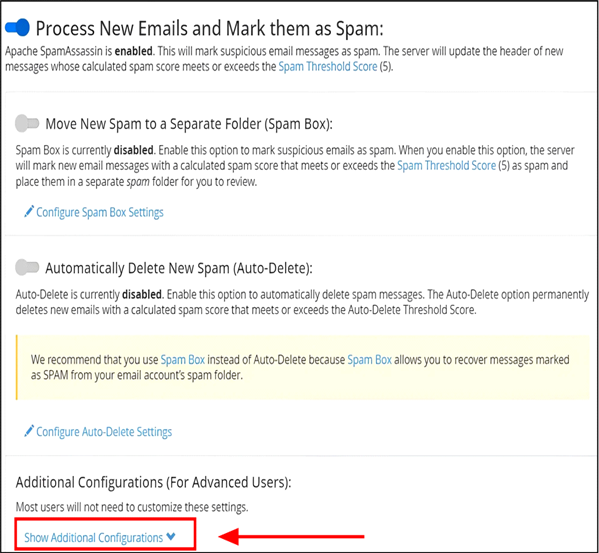
Step 3: Show Additional Configurations
Click on Show Additional Configurations to view more options.
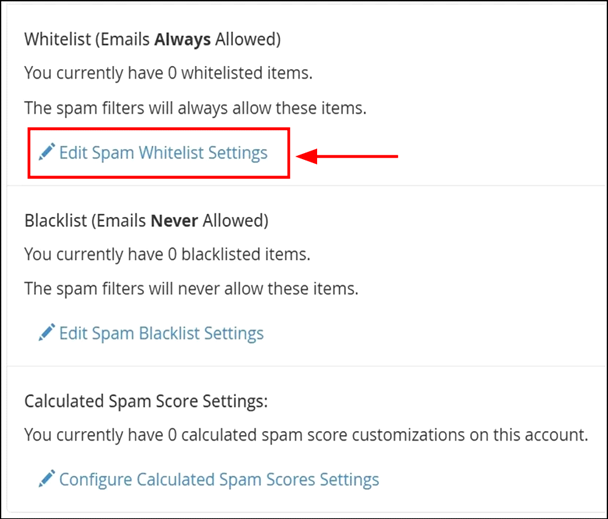
Step 4a: How to White List Email Address OR domain
Under the Whitelist section, click "Edit Spam Whitelist Settings"
Step 5: Under “Spam Whitelist Items (whitelist_from)”
Click " + Add A New ''whitelist_from" Item"
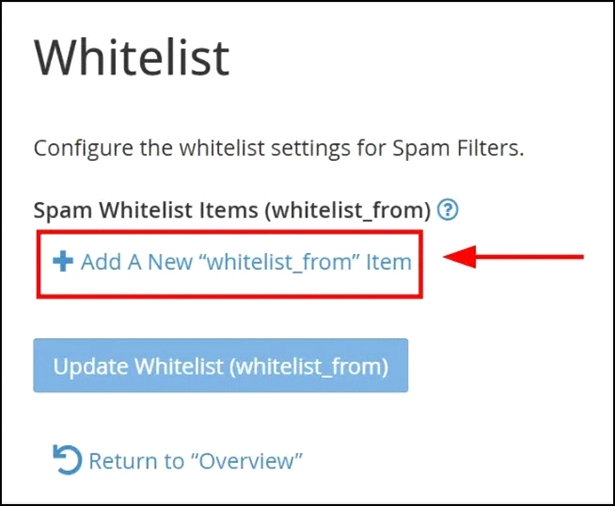
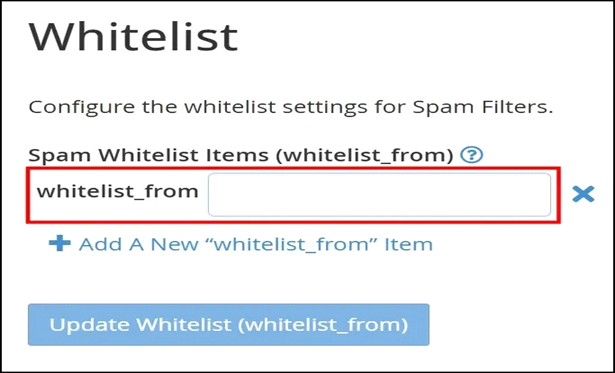
Step 6: Under Spam Whitelist Items (Whitelist_from)
Whitelisting an Email Address or Domain
- Single Email Address: Enter the specific email you want to whitelist.
example: abc@domainName
OR - Entire Domain: To whitelist all email addresses from a domain, use an asterisk (*) before the domain name:
example: *@domainName
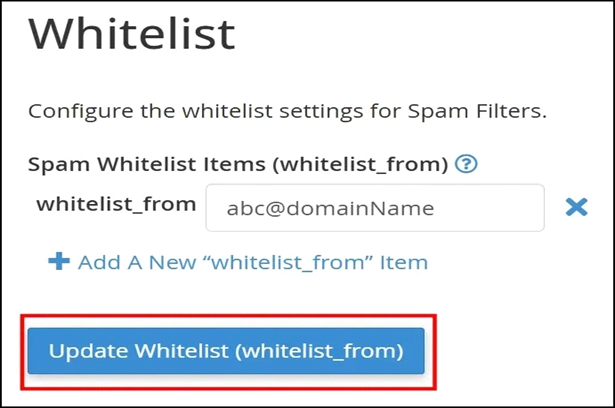
Step 7: Click "Update Whitelist (whitelist_from)
Added Email OR Entire Domain Whitelisted
Step 5b: How to Black List Email Address OR Domain
- Under the Blacklist section, click "Edit Spam Blacklist Settings"
- Under “Spam Blacklist Items(Blacklist_form)”
Click " + Add A New"blacklist_form" Item "
- Under “Spam Whitelist Items (Whitelist_from)”
Blacklisting an Email Address or Domain
1, Single Email Address: Enter the specific email you want to Blacklist.
example: abc@domainName
OR
2, Entire Domain: To Blacklist all email addresses from specific domain, use asterisk (*) before the domain name:
example: *@domainName
- Click "Click "Update Blacklist (Blacklist_from)"
- Added Email OR Entire Domain Blacklisted
Looking for a Complete Email Security Solution?
We Have a Solution for You.
Our Premium Services "Anti-Spam Bundles for Incoming
& Outgoing Email Protection"
Provides advanced filtering for all incoming and outgoing emails, enhancing security with over 90% improved spam detection.
Key Benefits:
- Cleaner and more organized inboxes
- Protection against spam, phishing, and malicious emails
- Improved server performance and email deliverability
- Reliable support for both personal and business email environments
Keep your email communication secure and efficient.