
Step-by-Step Instructions:
-
Log in to Plesk:
-
Open your browser and log in to your Plesk panel using the provided credentials.
-
-
Select the Domain:
-
From the left-hand menu, go to Websites & Domains.
-
Select the domain you want to secure with SSL.
-
-
Open SSL/TLS Settings:
-
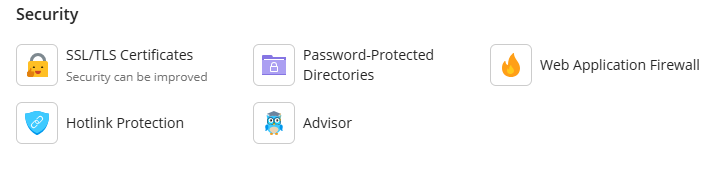
Under your selected domain, go to the Security section.
-
Click on SSL/TLS Certificates.
-
-
Reissue the Certificate:
-
Click the Reissue Certificate button.

-
- Click the Download or Remove existing certificate
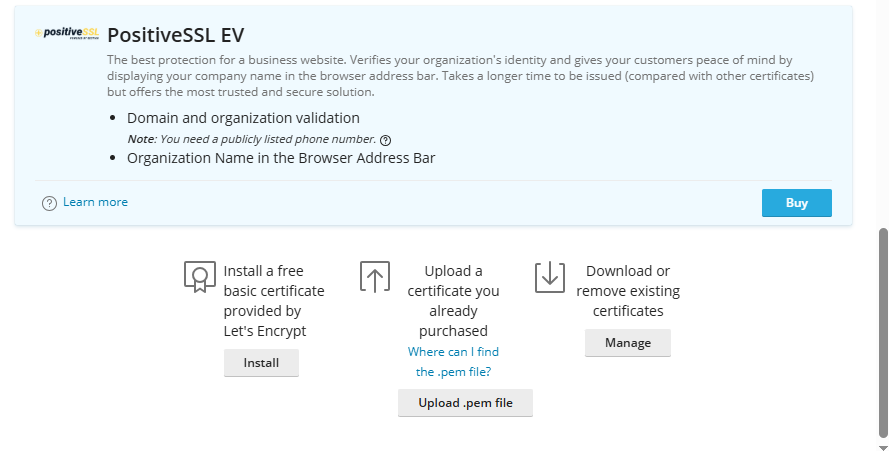
- Click Add SSL certificate

- Click on Request.
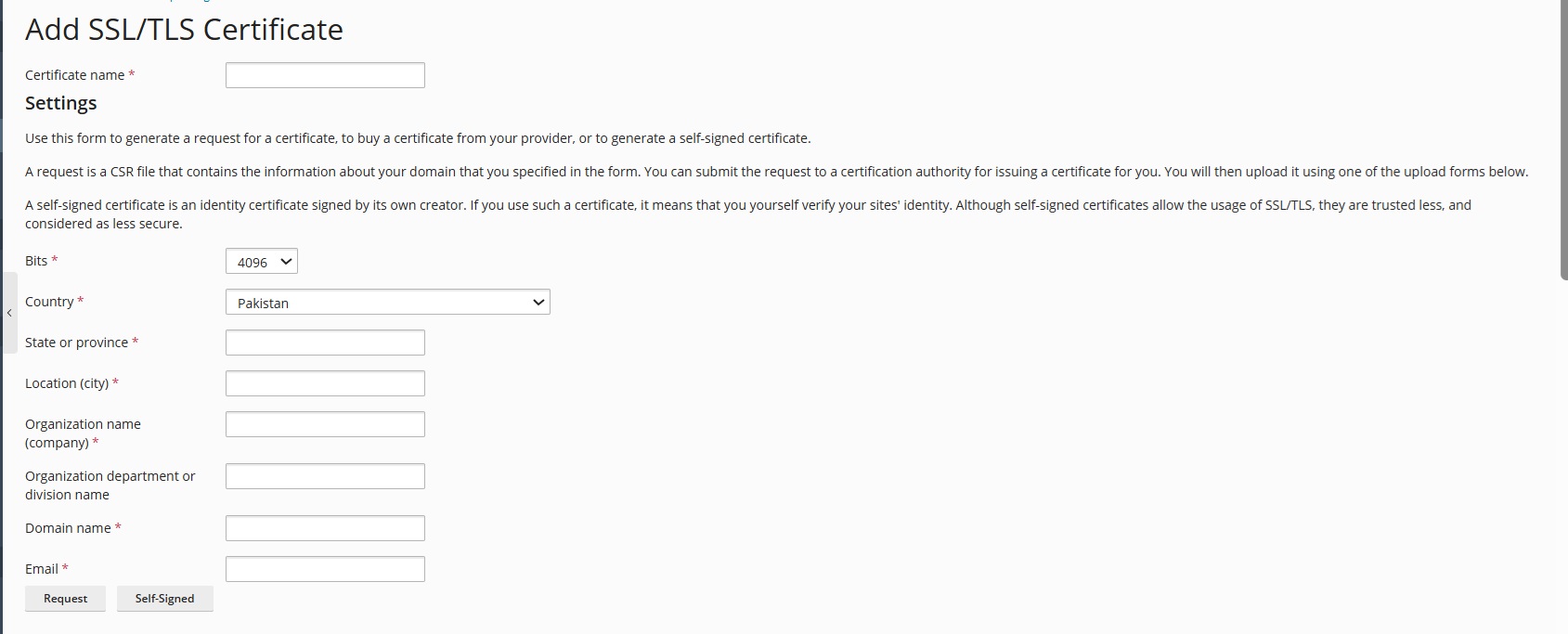
- The CSR will be sent to the email address you provided. You can open it with a text editor and the CSR will appear as a block of text OR Go back to SSL certificate page to get your private key and certificate signing request. Click the name of the certificate you need from the list of available certificates. A page showing the certificate properties opens. Locate the CSR section on the page, and copy the text that starts with the line —–BEGIN CERTIFICATE REQUEST—– and ends with the line —–END CERTIFICATE REQUEST—– to the clipboard.
- You can now buy SSL Certificate here https://hostbreak.com/business-solutions/ssl-certificates.